Zoom, Pan & Full-Screen Canvas
Everything on this page changes only how you look at the drawing. Nothing here alters the drawing, is saved with the file, or affects a PDF export. To permanently resize or shift what is on a sheet, use Scale & Offset instead.
The controls sit at the right-hand end of the toolbar:

Zoom
The number between the two magnifying-glass buttons is the current zoom level.
Zooming with the toolbar
- Click Zoom in (magnifier with a plus) to zoom in by 10%.
- Click Zoom out (magnifier with a minus) to zoom out by 10%.
You cannot zoom out below 10%.
Zooming with the mouse wheel
Hold Ctrl (Cmd on a Mac) and roll the mouse wheel. Rolling away from you zooms in, rolling toward you zooms out, 10% per notch.
Without Ctrl, the wheel scrolls the canvas up and down as it would any page.
Resetting the zoom
Click Reset zoom (the magnifier with a circular arrow, to the left of Zoom in). This:
- returns the zoom to 100%,
- undoes any panning and scrolls the canvas back to its top-left corner, and
- switches Pan off if it was on.
Exporting a PDF also sets the zoom back to 100%.
Pan
Panning slides the sheet around inside the window. There are four ways to do it.
Pan button
- Click the Pan button (four arrows) at the left of the view controls. It stays highlighted and the pointer changes to a hand.
- Drag anywhere on the canvas with the left mouse button.
- Click Pan again to switch it off before you go back to editing.
Middle mouse button
Hold the middle mouse button (the wheel) and drag. This works at any time, whatever tool is selected, and needs no button on the toolbar.
Alt + drag
Hold Alt (Option on a Mac) and drag with the left mouse button. This does the same as the middle mouse button and is handy on a trackpad or a mouse without a wheel.
Scrolling
When the sheet is larger than the window, the canvas area has scroll bars. Use them, or roll the mouse wheel, to move around.
Getting back
If you lose the sheet off the edge of the window, click Reset zoom to return to 100% at the top-left corner.
Pan on the toolbar moves your view. Pan page in the Scale & Offset panel moves the drawing itself on the sheet. Turning one on turns the other off.
On a touch screen
Drag with one finger to pan and pinch with two fingers to zoom. SkyWire Studio is designed for desktop browsers, so editing by touch is not supported. See Phones and tablets.
Expand canvas
Expanding the canvas gives the drawing the whole browser window. Use it when you need more room to work, or to present a drawing.
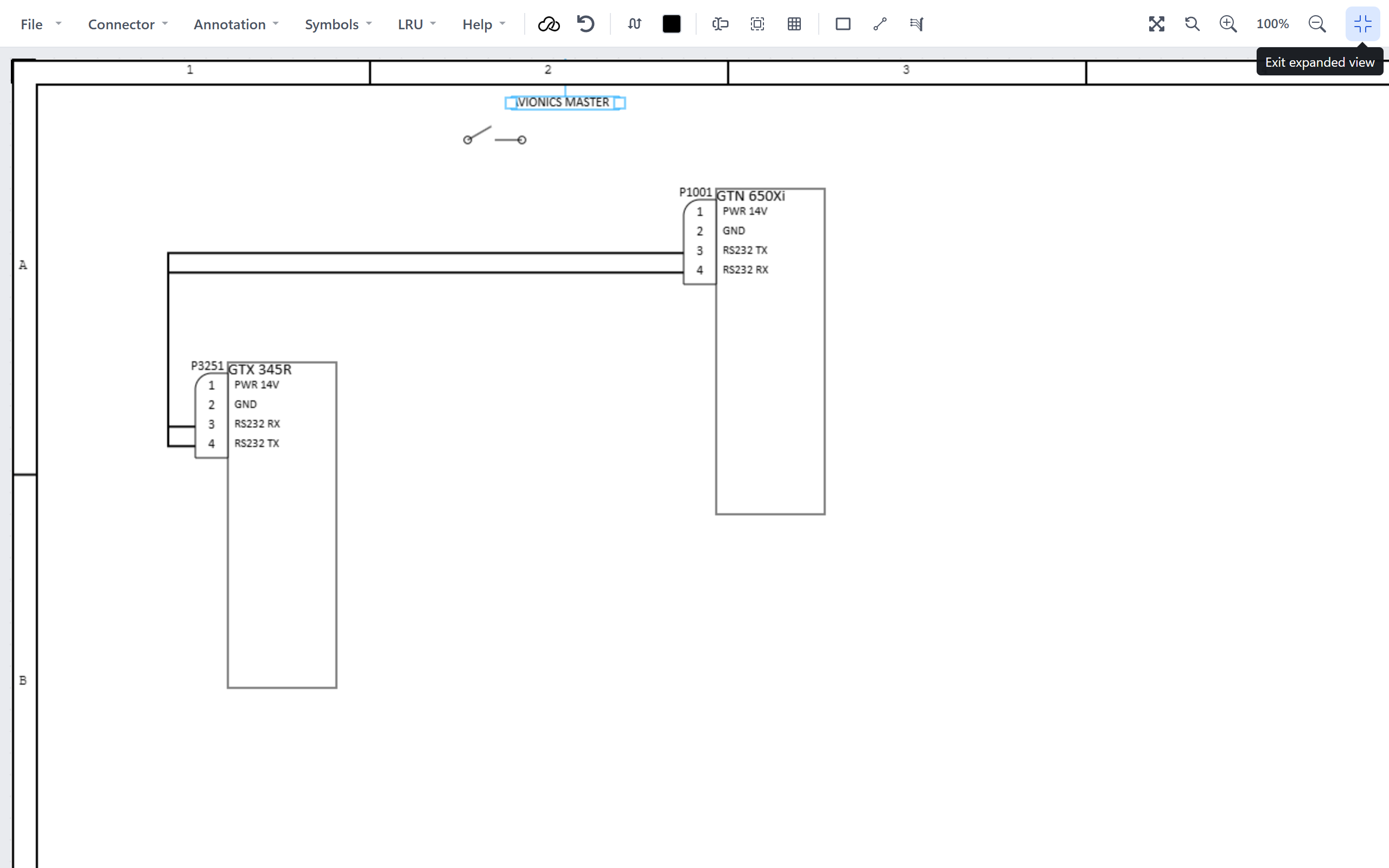
Entering full-screen canvas
Click Expand canvas, the last button on the right of the toolbar.
What is hidden
| Hidden | Consequence |
|---|---|
| Navigation bar | Account, Apps, the ? button and the links are out of reach until you exit. |
| Side panel rail and any open panel | Search, Revisions, Scale & Offset, Page Settings, Cover Page and Bill of Materials are not available. |
| Breadcrumb, Auto-Save and Local Backup switches | See the note about Auto-Save below. |
| Sheet tabs | You stay on the sheet (or cover page) you were viewing. Exit to switch sheets. |
| The floating Quick Connect / shield mode bar | You can still draw wires, but cannot switch routing mode until you exit. |
| The Recovered unsaved file available banner | It is shown again when you exit. |
What still works
- The whole toolbar: every menu, including
File→Saveand the PDF exports, every tool button, and the zoom and pan controls. - Everything on the canvas: dragging, right-click menus, double-click editing.
- All keyboard shortcuts.
- The Loom AI Copilot panel, if you open it from the toolbar.
- The Viewing Revision ... — read-only banner, which is never hidden.
Leaving full-screen canvas
Do any one of these:
- Press
Esc. - Click the same toolbar button again. While expanded it is highlighted and reads Exit expanded view.
Switching to another part of SkyWire Studio, such as your profile, also leaves expanded view.
The Auto-Save timer lives in the bar above the sheet tabs, which is hidden in expanded view, so no automatic saves happen there. Use File → Save while you work. When you exit, the Auto-Save switch returns to your default setting and its five-minute timer starts again. Local Backup keeps running.