Loom AI Copilot
The Loom AI Copilot is a chat panel inside the Wiring editor. It can see the diagram you have open, answer questions about the installation, and propose changes to the drawing.
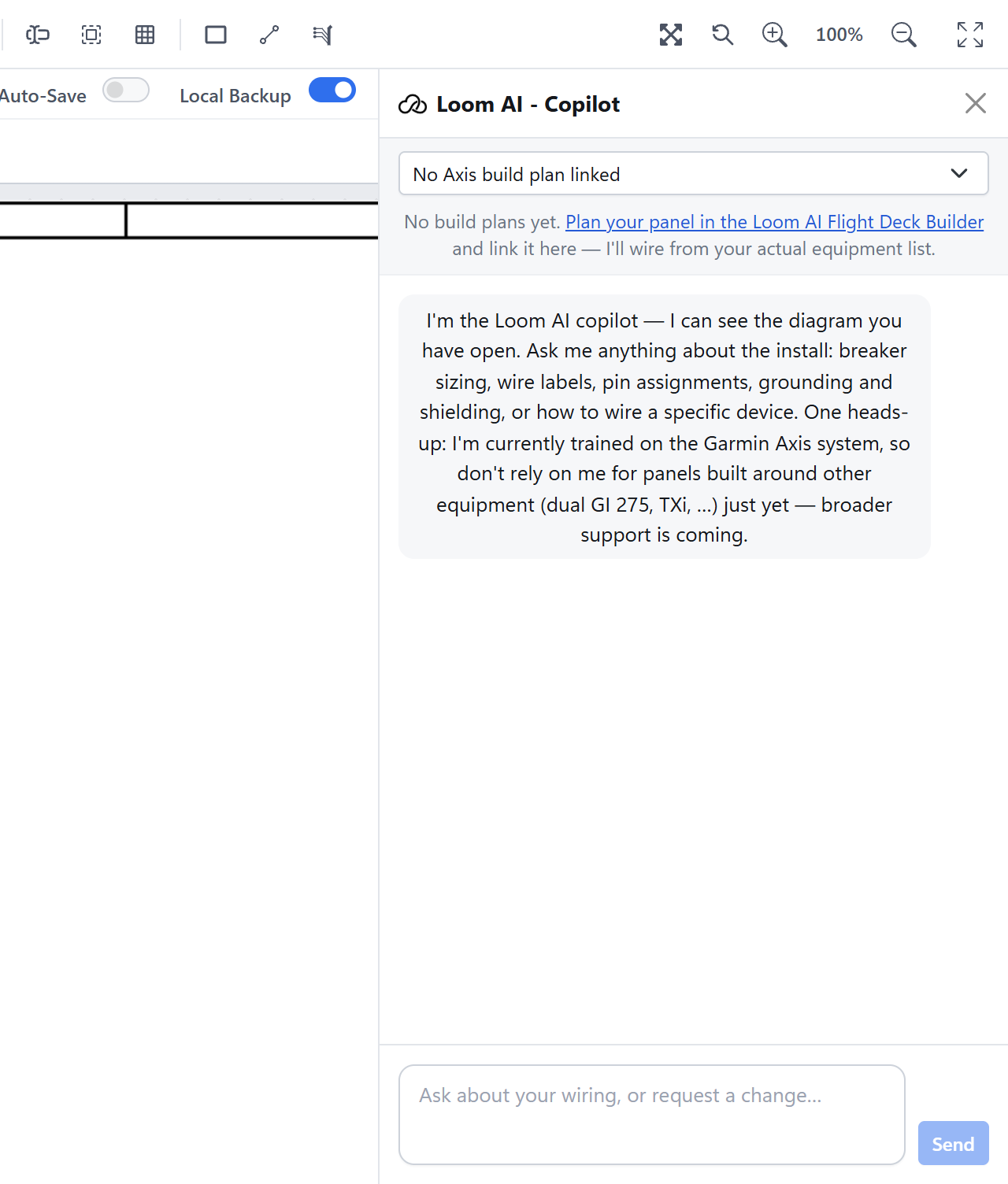
The Copilot is currently trained on the Garmin Axis system. Do not rely on it for panels built around other equipment yet. Always check its answers against the manufacturer's installation manual.
Opening the Copilot
Click the Loom AI Copilot button on the Wiring editor toolbar. It is the first button after the Help menu, just before Undo. The panel opens on the right side of the editor.
You must be signed in. If you are not, the Copilot replies Please sign in to SkyWire Studio to use the copilot.
The panel has four parts, from top to bottom:
| Part | What it shows |
|---|---|
| Header | The Loom AI - Copilot title, your credit balance and the X close button. |
| Build plan selector | The build plan linked to this conversation. |
| Conversation | The Copilot's welcome message, your questions, its replies and any proposed changes. |
| Message box | Where you type, with the Send button. |
Closing the Copilot
Click the X in the panel header, or click the Loom AI Copilot toolbar button again.
Closing the panel hides it but keeps the conversation. Open it again to carry on where you left off. See Starting a new conversation.
Resizing the panel
Drag the left edge of the panel. It can be between 320 and 640 pixels wide. The width is remembered in your browser for next time.
Asking questions
- Type in the box at the bottom of the panel. Its placeholder reads Ask about your wiring, or request a change…
- Press
Enteror clickSend. PressShift+Enterto start a new line without sending.
You can ask about things like:
- breaker sizing
- wire labels
- pin assignments
- grounding and shielding
- how to wire a specific device
The Copilot reads the diagram as it is at the moment you send the message, across all sheets, and it takes the recent conversation into account. You do not need to describe what is on the drawing.
While the Copilot is working
The message box is disabled until the reply is finished. In place of the reply you see what the Copilot is doing, for example:
- Thinking…
- Reading your diagram
- Checking the device library
- Pulling a device pinout
- Checking the specs
- Drafting a change set
Long questions can take a while. After about 25 seconds the panel adds Big question — this one can take a minute. Feel free to keep working; the answer will appear here. You can keep editing the drawing while you wait.
Stopping a reply
Click Stop, which replaces Send while a reply is in progress. Any text that had already arrived is kept. If nothing had arrived yet, the Copilot shows Stopped. Your credit was returned — ask again whenever you're ready.
Proposed changes
When you ask for a change to the drawing, the Copilot does not edit it directly. It replies with a card that has a title (or Proposed change) and a list of what it wants to do. Nothing on your drawing changes until you click Apply.
A proposal can contain any of these steps:
| Shown on the card as | What it does |
|---|---|
| Add … (a symbol name, with a rating and label if given) | Adds a symbol such as a circuit breaker, fuse, ground, splice or bus bar. |
| Add LRU … | Adds an LRU to the sheet. |
| Wire … → … | Draws a wire between two points, with a label if given. |
| Relabel pin → "…" | Changes a pin label. |
| Relabel wire → "…" | Changes a wire label. |
| Add note: … | Adds a text note to the sheet. |
Applying a proposed change
One-click apply is a Pro feature. On the Free plan the button reads Apply (Pro) and the card shows One-click apply is a Pro feature. Clicking it opens the Go Pro dialog instead of changing the drawing. You can still read the proposal and make the changes by hand.
- Read the list on the card and check it is what you want.
- Click
Apply. The card shows Applying… and then a green Applied badge. - Check the result on the drawing, then save your file as usual.
All steps on a card are applied together to the sheet you have open.
If the change cannot be made, the card shows Couldn't apply: followed by the reason, and the drawing is left as it was. Ask the Copilot again, or make the change by hand.
Dismissing a proposed change
Click Dismiss. The card is removed from the conversation and nothing changes on the drawing. A dismissed card cannot be brought back. Ask again if you change your mind.
Reverting an applied change
Click Revert on a card marked Applied. Everything that card added or relabelled is undone, and the card is marked Reverted.
- Use
Revert, notCtrl+Z. A change applied by the Copilot is not added to the editor's undo history. Revertis only available while the card is still in the conversation. It is gone after you reload the page, so check an applied change before you move on.- A reverted card cannot be applied again. Ask the Copilot to propose the change again.
Linking a build plan
A build plan is an equipment list you created in the Loom AI Flight Deck Builder. Linking one lets the Copilot wire from your actual equipment rather than from what it can infer from the drawing.
- Open the Copilot.
- Click the selector at the top of the panel, under the header.
- Choose your plan by name.
The plan is sent with every question from then on. The link is remembered in your browser for the file you have open, so each drawing can have its own plan.
To work without a plan, choose No Axis build plan linked.
Creating a build plan
If you have no plans, the panel shows No build plans yet. with a link to the Flight Deck Builder.
- Open Loom AI in one of these ways:
- choose
Apps→Loom AIin the navigation bar, - click the Loom AI - Copilot title in the panel header, or
- click Plan your panel in the Loom AI Flight Deck Builder in the panel.
- choose
- Loom AI opens in a new browser tab. Create your plan there.
- Back in SkyWire Studio, close and reopen the Copilot panel to refresh the list, then select the plan.
Credits
Asking the Copilot a question uses credit from your balance. The balance is shown as a badge in the panel header, for example 12 credits. The badge turns yellow when you have 3 or fewer left and red at 0.
- If you click
Stopbefore any reply arrives, the credit is returned. - If a reply fails to arrive, the Copilot shows Sorry — I didn't finish a reply that time. Your credit wasn't used; please try again.
- Pro subscriptions include a monthly credit allowance.
Running out of credits
When your balance reaches 0:
- The message box is disabled and reads You're out of credits — top up below to continue.
- A You're out of credits card appears: Top up to keep going, or go Pro for a monthly credit allowance plus one-click Apply.
- Buttons for the available credit packs are shown under the card and under the message box. Each button states how many credits it adds and the price. Clicking one opens checkout in a new browser tab.
See SkyWire Proopens the Go Pro dialog.
After topping up, close and reopen the Copilot panel to refresh your balance.
Messages you may see
| Message | What it means | What to do |
|---|---|---|
| One reply at a time — let the current answer finish. | A reply to an earlier question is still running on your account. | Wait, then send again. Your question is put back in the message box. |
| The copilot is at capacity right now — please try again a bit later. | The service is busy. | Try again later. Your question is put back in the message box. |
| Couldn't reach the copilot service. Check your connection and try again. | The request did not get through. | Check your internet connection. |
| The stream was interrupted. Please try again. | The connection dropped part-way through a reply. | Ask again. |
| The copilot hit an error (…). Please try again. | The service returned an error. | Ask again. |
| Covering a lot of ground — wrapping up an answer with what I've found… | The question needed a lot of look-ups and the Copilot is finishing with what it has. | Wait for the answer. Ask a narrower follow-up if needed. |
Starting a new conversation
There is no clear button. The conversation stays in the panel while you remain in the Wiring editor, including when you close and reopen the panel.
To start again, reload the browser page. Save your drawing first. Reloading also removes any Revert buttons, so check applied changes before you reload.
Conversations are not saved with the drawing and are not kept between visits.
Limits
- Equipment coverage. The Copilot is trained on the Garmin Axis system. Its welcome message says not to rely on it for panels built around other equipment (dual GI 275, TXi, …) just yet.
- It can be wrong. Check breaker sizes, pin numbers and wiring against the manufacturer's installation manual before you build anything.
- What it can change. Proposed changes are limited to the steps listed under Proposed changes. It does not delete or move items, and it does not edit the Bill of Materials, cover page or page settings.
- One question at a time. You cannot send a new message while a reply is in progress.
- Wiring editor only. The Copilot is not available in Panel Designer.
Copilot or Assistant?
The Copilot answers questions about your installation. For help using SkyWire Studio itself, use the SkyWire Assistant.