Auto-Save & Recovery
SkyWire Studio protects your work in two independent ways: Auto-Save writes to your saved file, and Local Backup keeps snapshots in your browser. Both switches sit next to the breadcrumb above the sheet tabs.

| Auto-Save | Local Backup | |
|---|---|---|
| Where the copy goes | Your saved file, in your account | This browser on this computer |
| Works for a drawing never saved | No | Yes |
| On by default | No | Yes |
| How often | Every five minutes | About every five minutes, when something has changed |
Auto-Save
Turn on Auto-Save to save the open file every five minutes.
- The switch is only available once the file has been saved for the first time with
File→Save. - During the last 30 seconds before each save, a countdown (
Saving in 12s) appears with aSkipbutton. ClickSkipto postpone that save by another five minutes. - You are asked whether to make your choice the default for this browser.
Turning Auto-Save on
- Save the file once with
File→Save. Until then the switch is greyed out. - Click the Auto-Save switch above the sheet tabs.
- A prompt asks Would you like auto-save to be on by default? Click
OKto have Auto-Save switch itself on whenever you open a saved file in this browser, orCancelto turn it on for now only.
The first automatic save happens five minutes later. Each save shows the same Saved! message as File → Save.
Turning Auto-Save off
Click the switch again. If Auto-Save was on by default, a prompt asks Would you like auto-save to be off by default? Click OK to change the default, or Cancel to turn it off for now only.
Skipping a save
For the last 30 seconds before a save, Saving in 30s counts down beside the switches. Click Skip to cancel that save and restart the five-minute timer, for example when you are halfway through a change you are not sure about.
When Auto-Save does not save
- The drawing has never been saved. There is no file to save to. Use
File→Savefirst. - You are viewing an earlier revision. Automatic saves are skipped so an old revision cannot overwrite your working copy. See Revisions.
- The canvas is expanded. The timer is paused while the sheet tabs are hidden. See Expand canvas.
- The server cannot be reached. The message There was an issue communicating with the server, please try again. appears. Use
File→Export Fileto keep a copy on your computer until saving works again.
Auto-Save overwrites the saved file, exactly like File → Save. To keep a state you can go back to, release a revision.
Local Backup
When Local Backup is on, SkyWire Studio keeps a few recent snapshots of your work in this browser. They let you recover after a browser crash, an accidental refresh, or closing the tab before saving.
- A snapshot is taken about every five minutes while you work, including for files you have never saved.
- Up to five snapshots are kept per file. Older ones are removed automatically.
- Backups are stored on this device only. They are not uploaded and are not available in another browser or on another computer.
Turning Local Backup on or off
Click the Local Backup switch above the sheet tabs. It is on unless you have turned it off, and your choice is remembered in this browser.
Turning it off stops new snapshots. Snapshots already taken stay in File → Recover File until you delete them.
When snapshots are taken
- About every five minutes, if the drawing has changed since the last snapshot.
- When you switch to another browser tab, minimise the window or close the tab.
- A blank, never-saved drawing is not backed up.
A drawing that has never been saved is listed as Unsaved File - followed by the date and time you started it, with an Unsaved badge.
Local backups are a safety net, not a substitute for saving. Clearing your browser data removes them.
Recovering a file
After an interruption
If SkyWire Studio finds a recent local backup of work that was never saved, a banner appears above the toolbar when you open the editor:
Recovered unsaved file available. We saved a local copy of your work...
Click Restore to load it, or Dismiss to ignore it. You can still get to it later from the File menu.
More about the banner:
- It appears only for a drawing that was never saved, and only when the backup is less than a week old. For a file that was saved, use
Recover File. Restorereplaces whatever is on the canvas with the backup and opens it as an untitled file. ChooseFile→Saveto keep it.Dismisshides the banner until you close this browser tab. The backup is not deleted.- The banner is hidden while the canvas is expanded.
From the File menu
- Choose
File→Recover File. - Backups are grouped by file. Click
Load Latestto open the newest snapshot for a file, or expand the group and clickLoadon a specific snapshot. - Confirm. The backup replaces what is currently on the canvas.
- Use
File→Saveto keep the recovered drawing.
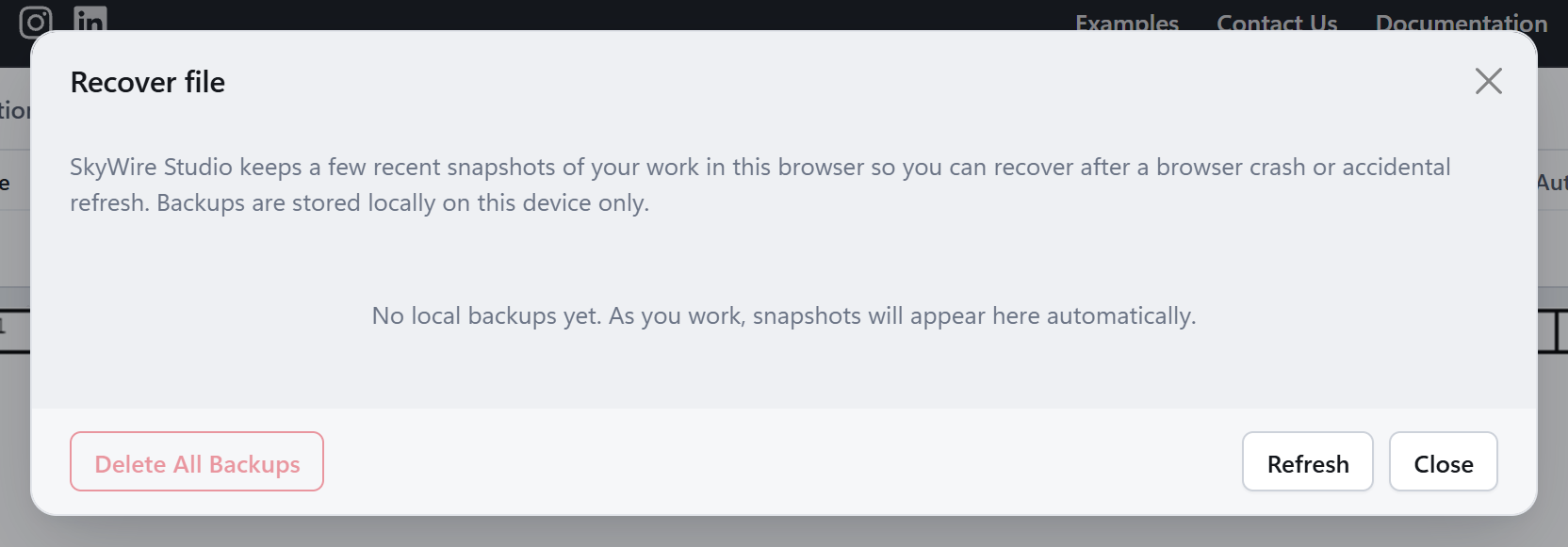
You can also delete a single snapshot, all backups for one file, or use Delete All Backups to clear everything stored in this browser.
The Recover file dialog in detail
Each row is one file and shows how many snapshots it has, their total size and when the newest was taken.
| Button | What it does |
|---|---|
Show Snapshots / Hide Snapshots | Lists every snapshot for that file with its date, time and size. |
Load Latest | Opens the newest snapshot for that file. |
Load (on a snapshot) | Opens that particular snapshot. |
Delete (on a snapshot) | Deletes that one snapshot. |
Delete All (on a file) | Deletes every snapshot for that file. |
Delete All Backups | Deletes every snapshot for every file in this browser. |
Refresh | Reloads the list. |
Close | Closes the dialog without changing anything. |
Loading a snapshot asks you to confirm, because it replaces any unsaved work on the canvas. Each delete also asks you to confirm and cannot be undone.
What happens after loading depends on the backup:
- A file that was saved — the snapshot opens as that file. Nothing is written to your account until you choose
File→Save, which then replaces the saved file with the recovered drawing. If that file has since been deleted, the snapshot opens as an untitled file instead. - An Unsaved drawing — the snapshot opens as an untitled file.
File→Saveasks for a project, file name and drawing number.
If the list is empty you see No local backups yet. If you see Local backups aren't supported in this browser., switch to Google Chrome.
If something goes wrong
"Something went wrong!"
If the editor runs into an error it cannot recover from, a Something went wrong! dialog tells you that your progress has been saved to your Recovered Projects folder, and gives the name of the recovered file.
- Note the file name shown in the dialog.
- Click
Close. The page reloads. - Choose
File→Load File, open the Recovered Projects project and load the file named in the dialog.
If the problem keeps happening, contact support@skywirestudio.com.
If a sheet cannot be drawn at all
If the whole sheet fails to draw, the editor is replaced by the message Something went wrong drawing this sheet. Your work has been saved to a recovered file. with two buttons:
Try againredraws the sheet without reloading. This is usually enough.Reloadreloads the page. Afterwards, open the recovered file from the Recovered Projects project withFile→Load Fileif your drawing is not as you left it.
If part of a sheet cannot be drawn
A yellow banner may appear above the toolbar:
Some content couldn't be drawn (...). Your drawing is intact and still saves normally — switching sheets or reloading usually restores it.
The brackets name what is missing, for example Wires or Symbols. Your data is not lost. Save, then switch to another sheet and back, or reload the page. Click Dismiss to hide the banner.
Leaving the page
Your browser asks for confirmation before you close or reload the editor tab, so that you have a chance to save first.