Revisions
A revision is a permanent, read-only snapshot of a drawing at a point in time. Release a revision whenever you issue the drawing, then keep editing the working copy.
Releasing and loading revisions requires a Pro subscription. The file must be saved first.
Releasing a revision
- Choose
File→Release revision. - Enter a Revision label, for example
A,B,1or2. Labels can be 1 to 12 letters, numbers, dots, dashes or underscores. - Enter a Description of what changed.
- Confirm. The revision is stored and the REV field in the title block updates.
More detail on each step:
- The drawing is released as it is on the canvas right now, including changes you have not saved yet. You do not need to save first.
- Revision label — the box is filled in with a suggestion that continues your sequence: numbers count up (
1,2,3), letters follow drawing practice (A,B,C, skipping I, O, Q, S, X and Z). Type over it to use a label of your own. A label already used on this file is rejected with Revision "..." already exists on this file. - Description is required.
Releasestays greyed out until you have typed one. - Click
Releaseto finish, orCancelto close the dialog without releasing.
A released revision can never be edited or deleted. Further changes go into the working copy and do not alter it.
Release revision is greyed out on the Free plan and for a drawing that has never been saved.
The Revisions panel
Click the Revisions icon on the side panel rail to list the released revisions of the open file. Each row shows the revision label, release date and author. Hover over a row to see its description.
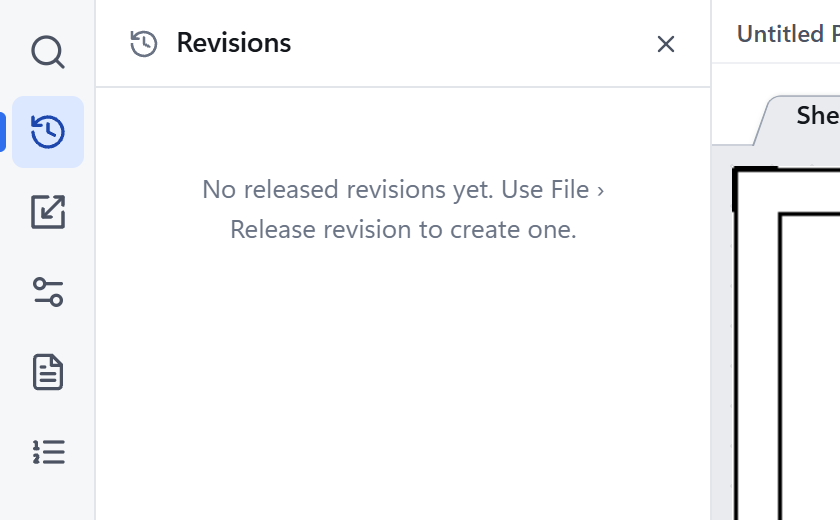
If nothing has been released yet, the panel says No released revisions yet.
The panel is a list for reference only: clicking a row does not open that revision. To open one, use File → Load revision as described below. The highlighted row is the latest release, or the revision you are currently viewing.
Viewing an earlier revision
- Choose
File→Load revision. - Pick a revision from the list, or Current (working copy) to go back to your latest work.
Each entry in the list shows the revision label followed by its description. Click Load to open your choice, or Cancel to stay where you are.
Loading a revision replaces what is on the canvas without asking. Save your working copy first, or unsaved changes are lost.
While an earlier revision is open, a banner above the toolbar reads Viewing Revision A (released ...) — read-only. You can look around and export a PDF, but edits are not saved and File → Save is disabled.
The banner has two buttons:
| Button | What it does |
|---|---|
Return to working copy | Closes the revision and reopens your latest work. |
Restore Revision A | Makes this revision the working copy. You are asked to confirm, because unreleased changes in the current working copy are replaced. Released revisions are never changed. |
What read-only means here
The canvas still lets you move and change things while a revision is open, but none of it is kept:
File→Saveis greyed out.- Auto-Save skips its saves.
- The banner stays visible even when the canvas is expanded, so you always know you are not in the working copy.
Export as PDF and Export Sheet as PDF work normally, which is how you re-issue an old revision.
Returning to the working copy
Click Return to working copy on the banner. Your latest saved work is reloaded and the banner disappears. Choosing Current (working copy) in File → Load revision does the same.
Restoring an earlier revision
Use this to roll the drawing back to how it was at a release.
- Open the revision with
File→Load revision. - Click
Restore Revision Aon the banner (the button shows the label of the revision you are viewing). - The banner asks Restore Revision A as the working copy? Click
Yes, restore, orCancelto back out.
The working copy now matches what is on the canvas, that is, the revision plus anything you changed while viewing it, and you can carry on editing from there. Unreleased changes that were in the working copy are gone, so release a revision first if you might want them back. The released revisions themselves are not changed.