Projects & Files
A file is one drawing (with one or more sheets). Files live inside projects. Everything on this page is in the File menu.
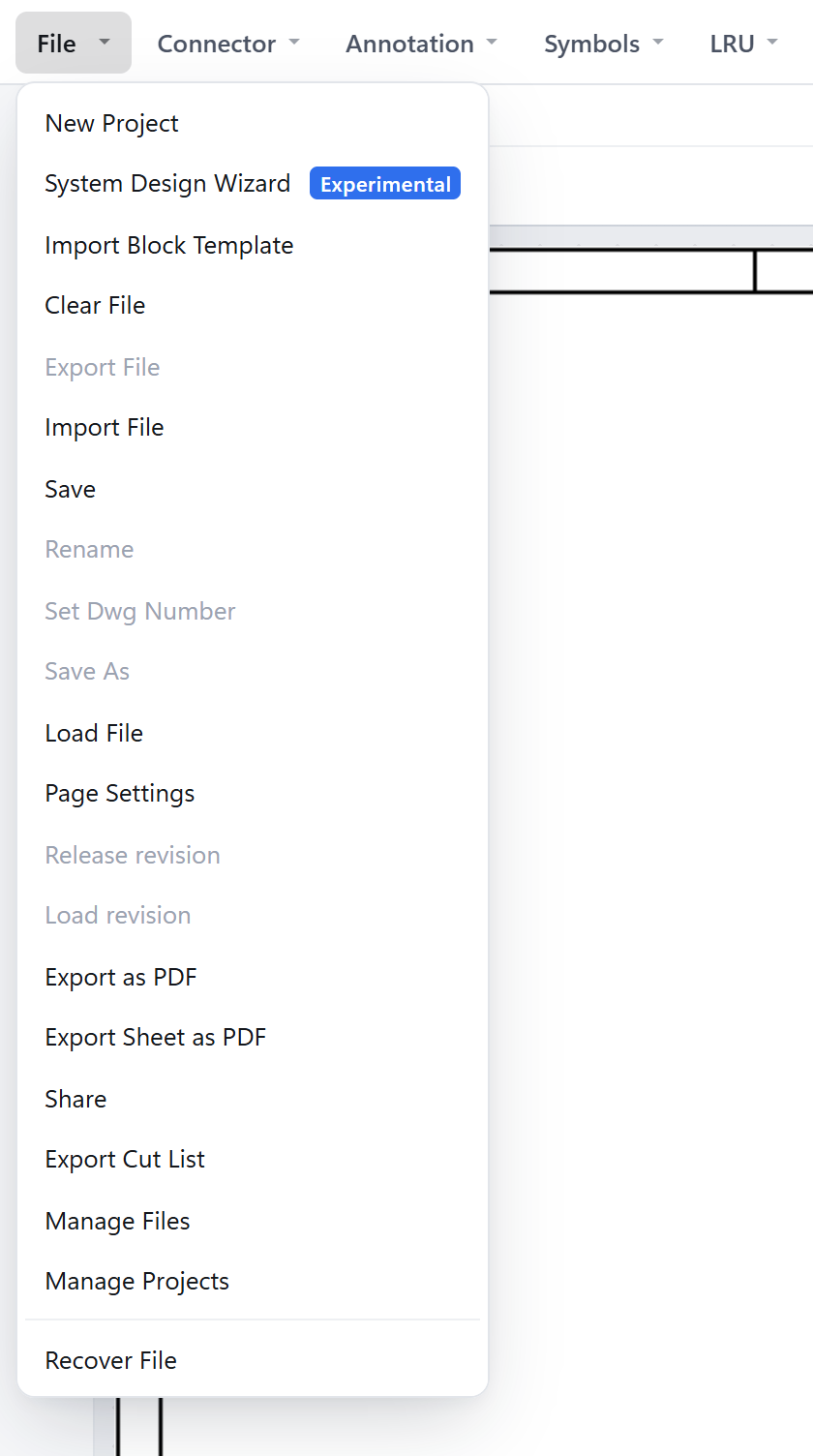
The File menu at a glance
Items are listed in the order they appear in the menu.
| Menu item | What it does | Greyed out when |
|---|---|---|
New Project | Creates a project to save files in. | — |
System Design Wizard | Builds a drawing from a system description. See System Design Wizard. | You are on the Free plan. |
Import Block Template | Adds a saved block to the sheet. See Loading Templates. | You are on the Free plan. |
Clear File | Empties the drawing and starts a new untitled file. | — |
Export File | Downloads the drawing as a .skywire file. | The drawing has never been saved. |
Import File | Opens a .skywire file from your computer. | — |
Save | Saves the open file. | You are viewing an earlier revision. |
Rename | Renames the open file. | The drawing has never been saved. |
Set Dwg Number | Changes the drawing number. | The drawing has never been saved. |
Save As | Saves a copy as a new file. | The drawing has never been saved. |
Load File | Opens one of your saved files. | — |
Page Settings | Sets the paper size. See Page size. | — |
Release revision | Freezes the drawing as a revision. See Revisions. | The drawing has never been saved, or you are on the Free plan. |
Load revision | Opens an earlier revision. See Revisions. | The drawing has never been saved, or you are on the Free plan. |
Export as PDF | Exports every sheet. See Exporting. | — |
Export Sheet as PDF | Exports the sheet you are viewing. See Exporting. | — |
Share | Gives other users access to a project. See Sharing. | You are on the Free plan. |
Export Cut List | Downloads a wire list as an Excel workbook. See Exporting. | You are on the Free plan. |
Manage Files | Moves or deletes files. | — |
Manage Projects | Deletes projects. | — |
Recover File | Restores a local backup. See Auto-Save & Recovery. | — |
The File menu is not available in viewer mode.
Projects
File→New Projectcreates a project. Enter a name and clickSave.File→Manage Projectslets you delete projects.
The current project and file are shown in the breadcrumb above the sheet tabs, for example My Project / Autopilot Install. A drawing that has not been saved yet shows Untitled File.
New Project
You need at least one project before you can save a file.
- Choose
File→New Project. - Type a Project name.
- Click
Save.Savestays greyed out until you have typed a name.
Click Cancel to close the dialog without creating anything. Creating a project does not change the drawing you have open.
Manage Projects
Use this to delete projects you no longer need.
- Choose
File→Manage Projects. - Tick the box next to each project you want to delete.
- Click
Delete, then confirm.
Deleting a project cannot be undone. Move any files you want to keep to another project first, with Manage Files.
Saving
| Menu item | What it does |
|---|---|
Save | Saves the open file. The first time, the Save dialog asks you to select a project folder and enter a File Name and Drawing Number. |
Save As | Saves a copy under a new name, in any of your projects. |
Rename | Renames the open file. The title block updates to match. |
Set Dwg Number | Changes the drawing number shown in the title block. |
A Saved! message confirms each save. Save As, Rename and Set Dwg Number are available once the file has been saved for the first time.
Turn on Auto-Save above the sheet tabs so you never have to think about it. See Auto-Save & Recovery.
Save
The first time you save a drawing:
- Choose
File→Save. The Save dialog opens. - Under Select a Project Folder, tick the project to save into. A blue note confirms the Selected Project. If the list is empty, click
Cancel, create a project withNew Project, and start again. - Enter a File Name.
- Enter a Drawing Number. It is shown in the DWG field of the title block.
- Click
Save.
Save stays greyed out until you have chosen a project and filled in both boxes. Once saved, the breadcrumb and the title block show the new file name.
After that, File → Save saves straight away with no dialog, and a Saved! message appears at the top left for a few seconds.
Things to know:
- There is no keyboard shortcut for save. In a browser,
Ctrl+Ssaves the web page, not your drawing. Saveis greyed out while you are viewing an earlier revision.- If the message There was an issue communicating with the server, please try again. appears instead, the drawing was not saved. Try again; if it keeps failing, use
Export Fileto download a copy so your work is safe.
Save As
Makes a new file from the drawing on the canvas and leaves the original file as it was last saved.
- Choose
File→Save As. - Tick the project to save into. It can be a different project from the original.
- Enter a File Name and a Drawing Number.
- Click
Save.
You are now working in the new file: the breadcrumb shows its name and later saves go to it.
Rename
- Choose
File→Rename. - Type the new name in the Rename dialog.
- Click
Saveor pressEnter.
The breadcrumb and the TITLE field of the title block update, and a Saved! message confirms the change. Renaming does not save other changes you have made to the drawing; use File → Save for that.
Set Dwg Number
Changes the drawing number shown in the DWG field of the title block.
- Choose
File→Set Dwg Number. - Type the new drawing number. (The dialog is titled Rename, the same small dialog used for renaming.)
- Click
Saveor pressEnter.
Loading
File → Load File opens a browser of your projects and files. Select a file and load it. The file replaces whatever is currently on the canvas, so save first.
Load File
- Save the drawing you have open, if you want to keep it.
- Choose
File→Load File. - Under Select A File, open a project and click the file you want. Its name appears in the box below the list.
- Click
Load.
You are not asked to confirm, and loading cannot be undone, so step 1 matters. The file always opens at its current working copy; to see an earlier state, use Load revision afterwards.
Managing files
File → Manage Files lets you tidy up:
- Select one or more files, choose a project under Move to project, and click
Move. - Select files and click
Deleteto remove them permanently.
Moving files to another project
- Choose
File→Manage Files. - Open a project and tick the files to move. Ticking a project's own box selects every file in it.
- A Move to project list appears above the files. Choose the destination project.
- Click
Move.
Deleting files
- Choose
File→Manage Files. - Tick the files to delete.
- Click
Delete, then confirm.
Deleted files cannot be recovered from SkyWire Studio. If one of the files you move or delete is the one you have open, the editor is cleared to a new untitled file, so save your work first.
Clearing the canvas
File → Clear File empties the whole drawing and detaches it from the saved file, giving you a new untitled file. You are asked to confirm first.
Clear File
Use this to start a new drawing.
- Save the open drawing if you want to keep it.
- Choose
File→Clear File. - Confirm the message This will clear your entire file, be sure your progress has been saved.
Every sheet is removed and the breadcrumb goes back to Untitled File. The saved copy of the file you had open is not touched; open it again with Load File. Clearing cannot be undone with Ctrl+Z.
Moving a drawing between accounts
File→Export Filedownloads the open file as a.skywirefile. The file must be saved first.File→Import Fileopens a.skywirefile from your computer into the editor. UseFile→Saveafterwards to store it in one of your projects.
.skywire files can only be opened by SkyWire Studio.
Export File
Downloads a copy of the drawing to your computer. Use it to hand a drawing to someone with a different account, or to keep your own backup.
- Save the drawing at least once.
Export Fileis greyed out for a drawing that has never been saved. - Choose
File→Export File.
A file named after your drawing, ending in .skywire, is downloaded. It contains every sheet as it is on the canvas right now, including changes you have not saved yet.
Import File
- If a saved file is open and you want to keep it unchanged, choose
File→Clear Filefirst. See the caution below. - Choose
File→Import File. - Pick a
.skywirefile on your computer. - The drawing opens on the canvas. Choose
File→Saveto store it in one of your projects.
If the file is not a SkyWire Studio export, the message Invalid file format or decryption failed. appears and nothing changes.
Importing replaces what is on the canvas without asking, but it does not close the file you have open. If the breadcrumb still shows that file's name, File → Save writes the imported drawing over it. To keep both, use Clear File before importing, or Save As after.
Other items in the File menu
| Menu item | See |
|---|---|
System Design Wizard | System Design Wizard |
Import Block Template | Loading Templates |
Page Settings | Page Settings |
Release revision, Load revision | Revisions |
Export as PDF, Export Sheet as PDF, Export Cut List | Exporting |
Share | Sharing |
Recover File | Auto-Save & Recovery |
System Design Wizard and Import Block Template need a Pro subscription. Starting the System Design Wizard clears the sheet you are on, after asking you to confirm.