Search and Scale & Offset
This page covers the side panel rail itself and two of its panels. The other panels have their own pages: Revisions, Page Settings, Cover Page and Bill of Materials.
Opening and closing a panel
The rail is the strip of icons down the left edge of the editor. Hover over an icon to see the panel's name.
- Open — click an icon. The panel opens beside the rail.
- Switch — click a different icon. Only one panel is open at a time. A panel you have already visited keeps what you typed in it, such as a search, until you close the panel area.
- Close — click the highlighted icon again, click the X in the panel header, or press
Escwhile the cursor is in one of the panel's fields.
The rail is not shown while the canvas is expanded, or on phones and tablets.
Search
Search finds items across every sheet of the open file.
- Click the Search icon on the rail. The search box is focused automatically.
- Type part of a name. Results appear as you type and show the item type and the sheet it is on.
- Double-click a result to jump to it. SkyWire Studio switches to the right sheet and highlights the item.
Search looks at:
- LRU names
- Connector names
- Pin labels
- Connection (wire) labels
Reading the results
Each result has two lines: the item, then the name of the sheet it is on.
| Result | Meaning |
|---|---|
LRU: GTN 650 | An LRU with that name. |
Connector: P1001 (GTN 650) | A connector, with its LRU in brackets. |
Pin: GPS RS-232 OUT 1 [56] - P1001 | A pin label, its pin number in square brackets, then its connector. |
Connection: W12 | A wire with that label. |
Limits
- Search matches any part of a name and ignores upper and lower case.
- Up to 50 results are listed. If you do not see what you want, type more of the name.
- No results found means nothing matched. Symbols, text boxes, bulkheads and buses are not searched.
- A single click does not jump. Double-click the result.
Scale and Offset
The Scale & Offset panel permanently scales and shifts the contents of a sheet inside its border. Use it to make a crowded drawing fit the page, or to move everything away from the title block. Each sheet (and the cover page) has its own scale and offset. They are saved with the file and used when you export a PDF.
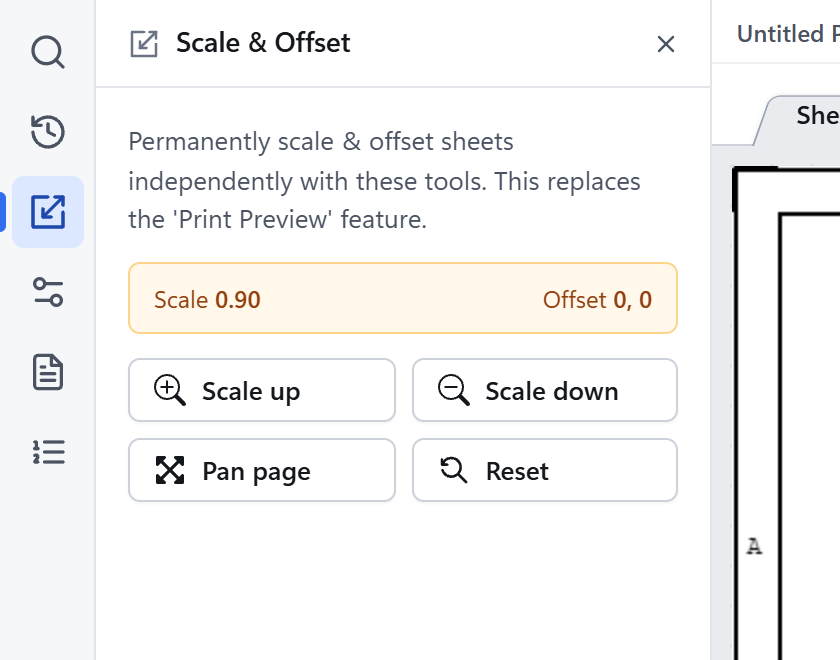
| Button | What it does |
|---|---|
| Scale up / Scale down | Grows or shrinks the sheet contents in 10% steps. |
| Pan page | Turns page-pan mode on. Drag on the canvas to shift the sheet contents. Click again to turn it off; it also turns off when you switch to another panel or close this one. |
| Reset | Returns the sheet to scale 1.00 with no offset. |
The status line at the top of the panel shows the current scale and offset, or No scale or offset applied.
Making a drawing fit the page
- Open the sheet you want to adjust.
- Click the Scale & Offset icon on the rail.
- Click Scale down until the drawing fits inside the border. Each click is 10%; the smallest scale is 0.10.
- Click Pan page. The button stays highlighted and the pointer changes to a hand.
- Drag on the canvas until the drawing sits where you want it.
- Click Pan page again to turn it off.
The border and title block stay where they are; only the contents of the sheet move.
Undoing a scale or offset
Click Reset in the panel. Ctrl+Z does not undo scale and offset changes.
Good to know
- Pan page and the toolbar's Pan button cannot be on together. Turning one on turns the other off.
- While Pan page is on, dragging with the middle mouse button or
Altalso moves the page contents instead of your view. - Pan page is switched off for you when you open a different panel or close this one.
- To adjust the cover page, click the Cover Page tab first. Its scale and offset are separate from every sheet.
Scale & Offset changes the drawing itself. The zoom controls on the toolbar only change how closely you are looking at it. See Zoom, Pan & Full-Screen Canvas.