Profile & Company
The account page holds your name, your subscription details and your company logo.
Opening your profile
Choose Account → Profile in the navigation bar. You must be logged in.
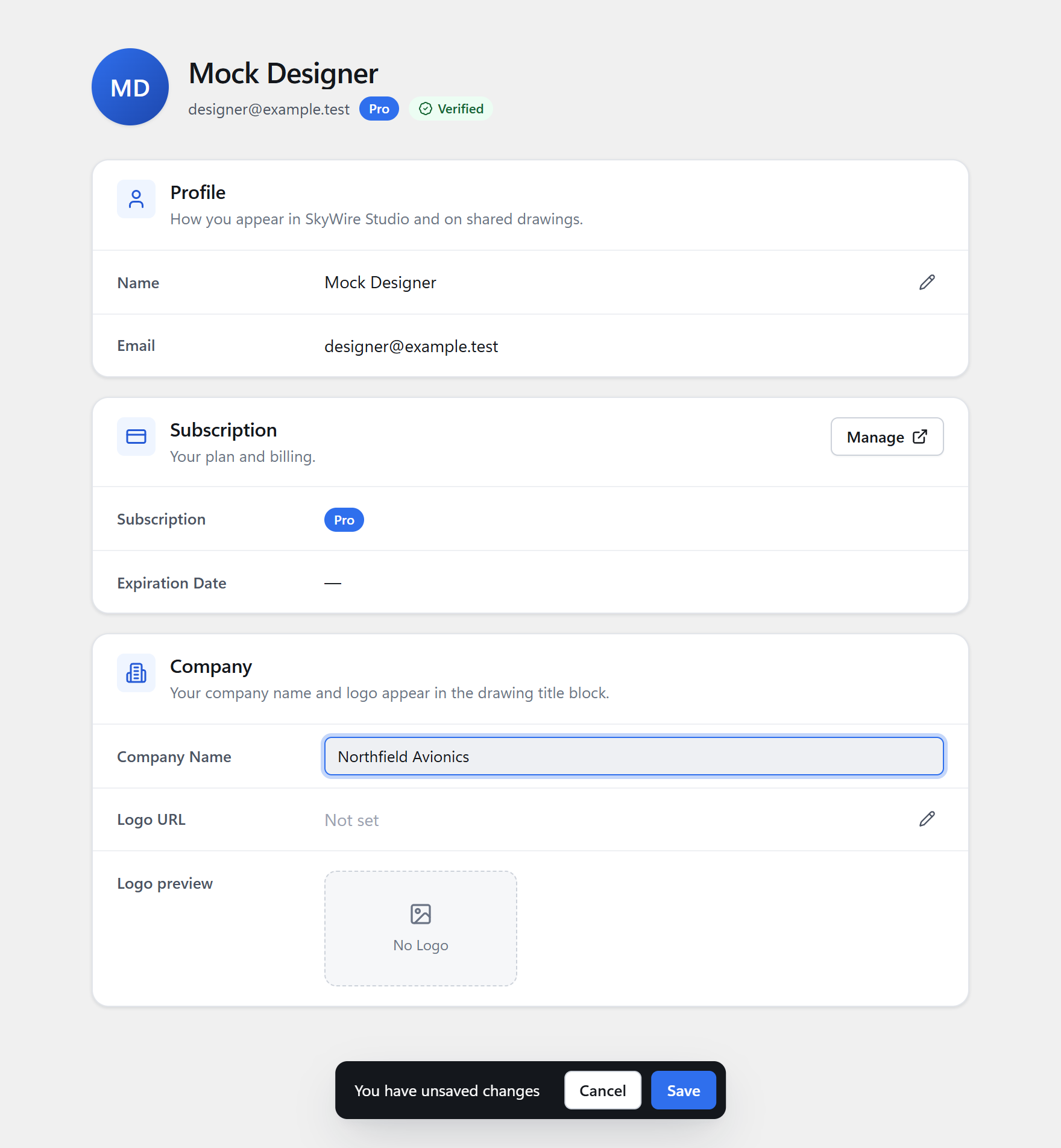
The header shows your initials, name, email address, plan (Free or Pro) and either Verified or Email not verified. Below it are three cards: Profile, Subscription and Company.
To go back to your drawing, choose Apps → Wiring.
Editing a field
Fields you can change have a pencil button at the right of the row.
- Click the pencil. The value becomes a text box.
- Type the new value.
- Press
Enter, or clickSavein the You have unsaved changes bar at the bottom of the page.
To back out, press Esc or click Cancel in the bar. Every field you were editing goes back to its previous value.
You can click several pencils and save all the changes together. A field with no value shows Not set.
Profile
| Field | Notes |
|---|---|
| Name | Click the pencil to edit. It cannot be left empty. |
| The address you log in with. It cannot be changed here. |
Changing your name
- Click the pencil on the Name row.
- Type your name and press
Enter.
Your name is used to fill in the DRAWN box of the title block on a saved drawing when that box is empty:
- a two-word name becomes initials, for example Jane Smith becomes JS,
- a one-word name is used as it is,
- a name of three or more words leaves the box empty. Type your initials into the title block yourself.
Verifying your email
If your email address has not been verified, a warning triangle appears on the Account button and a Verify your email address notice is shown on this card.
- Click
Verify E-mail. - Open the message we send you and follow the link.
Did not get it? Click Resend E-mail. The full steps, and what to do when a link has expired, are in Verifying your email address.
Subscription
Shows your plan and billing details.
| Row | Notes |
|---|---|
| Subscription | Free or Pro. |
| Expiration Date | The date your current subscription runs to, or — if there is none. |
Neither row can be edited here.
Managing billing
Click Manage at the top of the card. The billing portal opens in a new tab, where you can update your payment method or cancel.
Pro users can also reach the portal from Account → Subscriptions.
To upgrade from Free, click Try Pro in the navigation bar. See Upgrading.
Company
| Field | Notes |
|---|---|
| Company Name | Click the pencil to edit. Available on both plans. |
| Logo URL | The web address of your logo image. Pro users only. |
| Logo preview | Shows the saved logo, or No Logo. |
On the Free plan the card is marked Pro Users Only and the Logo URL row has no pencil.
Setting your company name
- Click the pencil on the Company Name row.
- Type the name and press
Enter.
Setting your company logo
A custom logo requires a Pro subscription. Free accounts use the SkyWire Studio logo.
- Put your logo somewhere it can be reached by a public web address, for example your company website.
- Click the pencil on the Logo URL row.
- Paste the address of the image and press
Enter.
SkyWire Studio checks that it can load the image before saving. When it can, the Logo preview shows your logo. While you are editing the address, the preview shows No Logo.
Tips for the logo:
- Use a PNG or JPG image. Other formats, such as SVG, cannot be used in PDF exports.
- The image must be publicly reachable at the address you enter, without a login.
Where your logo appears
Your logo replaces the SkyWire Studio logo in the logo box of the title block on every sheet, and so in your PDF exports.
If the logo cannot be loaded later, for example because the image was moved:
- the title block shows Missing Logo, and
- a PDF export still finishes, using the SkyWire Studio logo, with the message Your company logo could not be used and the reason.
Fix the Logo URL here and export again.
Removing your logo
- Click the pencil on the Logo URL row.
- Delete the address and press
Enter.
The title block goes back to the SkyWire Studio logo.
Saving changes
While you have edits in progress, a bar appears at the bottom of the page: You have unsaved changes. Click Save to keep them or Cancel to discard them. Leaving the page without saving discards them.
Error messages
| Message | What to do |
|---|---|
| Please fill in all required fields with valid values. | Name is empty. Enter a name and save again. |
| Cannot retrieve your logo from the provided URL. Please ensure the image is accessible externally. | The Logo URL does not lead to an image SkyWire Studio can load. Check the address opens the image itself, not a web page, and does not need a login. |
| Could not save your changes, please try again or reach out to support | The change was not saved and the fields are back to their previous values. Try again. |
| Could not send verification link, please try again or reach out to support | The verification email was not sent. Click the button again. |